How to activate an eSIM: iPhone and Android guide
Activation takes a few minutes, but two steps get skipped most often: install over WiFi, and enable data roaming on the eSIM line. Without roaming, no eSIM will connect.
Install over WiFi QR code by email Roaming must be on Support if needed
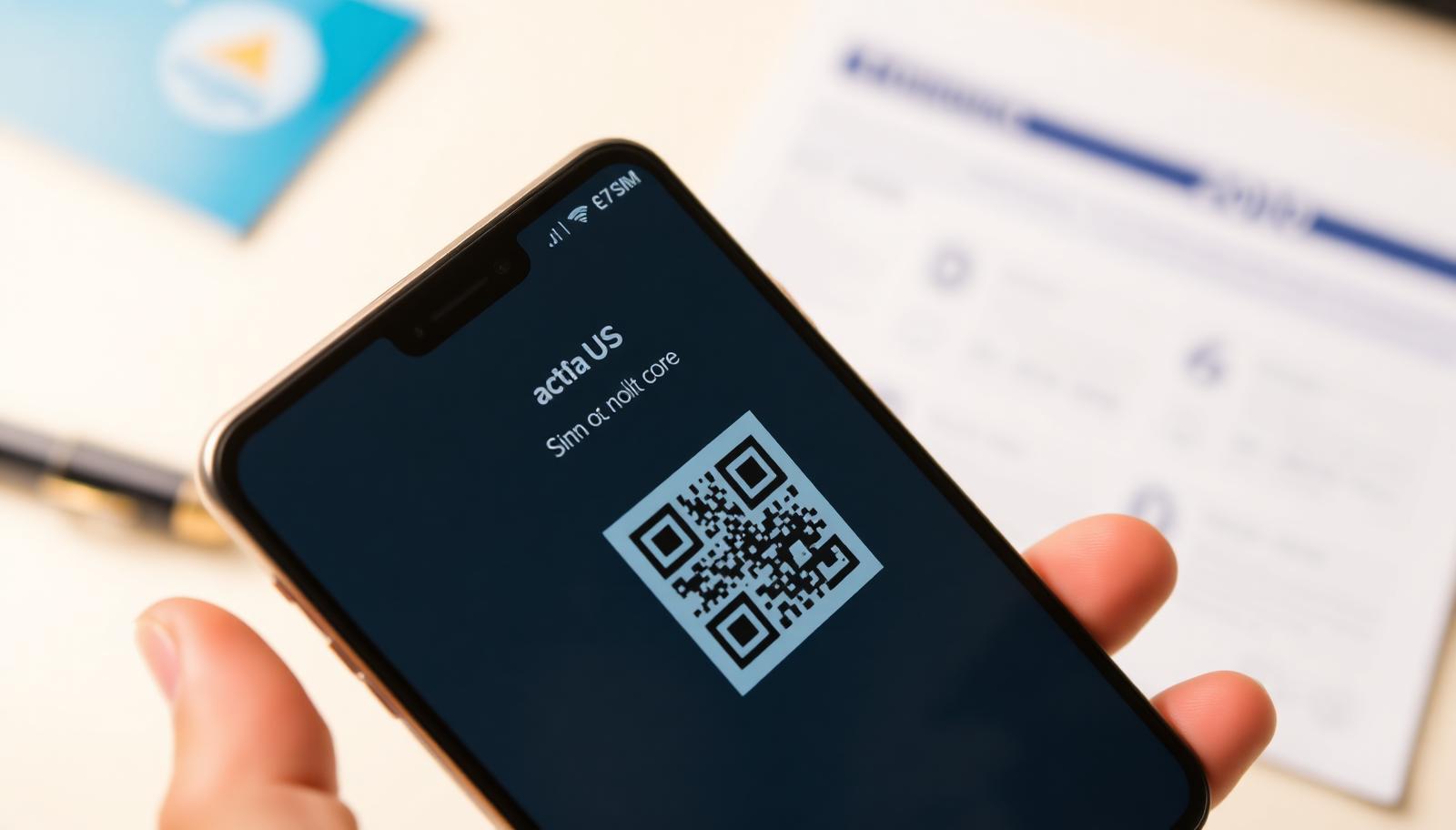
iPhone
- Settings → Cellular → Add eSIM
- Scan the QR code from your email or account
- Set the eSIM as your data line
- Turn on Data Roaming for that line
Android (Samsung, Pixel, Xiaomi)
- Settings → Connections → SIM manager → Add eSIM
- Scan the QR code or enter details manually
- Select the eSIM for mobile data
- Enable Data Roaming
If data does not work
- Check data roaming is on for the eSIM line
- Make sure mobile data uses the eSIM, not the physical SIM
- Toggle airplane mode or restart the phone
- Select the network manually if needed
Does my phone support eSIM?
Dial *#06# on your phone. If you see an EID number next to the IMEI, your phone supports eSIM. The phone also must not be carrier-locked.
Supported devices include iPhone XR/XS and newer, Samsung Galaxy S20 and newer, Google Pixel 3 and newer, plus most recent Huawei, Xiaomi and Motorola models.
Frequently asked questions
Can I install without internet?
No, installation needs WiFi or an existing connection – install before you travel.
Can I scan the QR code twice?
No. An eSIM profile installs once, on one device.
When does validity start?
When the eSIM first connects to a network at your destination.
Buy a planSupport daily until 22:00 · WhatsApp +387 62 862 577