How to Activate an eSIM Step by Step
Activating an eSIM sounds technical, but in practice it takes only a few minutes if the steps are followed in the right order. Most problems happen when a step is skipped or done at the wrong time.
In this guide we walk through the complete purchase and activation process for a GoConnect eSIM plan, from the moment of payment to your first successful connection.
Before you buy: check your phone
The first step isn't buying a plan, it's checking whether your phone supports eSIM at all. Dial *#06# on your phone's keypad. If an EID number appears next to the IMEI, your phone supports eSIM technology.
It also matters that your phone isn't carrier-locked, because a locked phone will refuse another operator's eSIM regardless of the EID.
Buying a plan on goconnect.ba
On the /plans page you choose your destination and the amount of data that matches the length of your trip. Payment is by card online, and right after a successful transaction your eSIM QR code arrives by email and appears in your account on the dashboard.
- Pick the country or region you're travelling to
- Choose a plan based on days and GB of data
- Pay by card online
- Save the email with the QR code or log in to your dashboard
Scanning the QR code
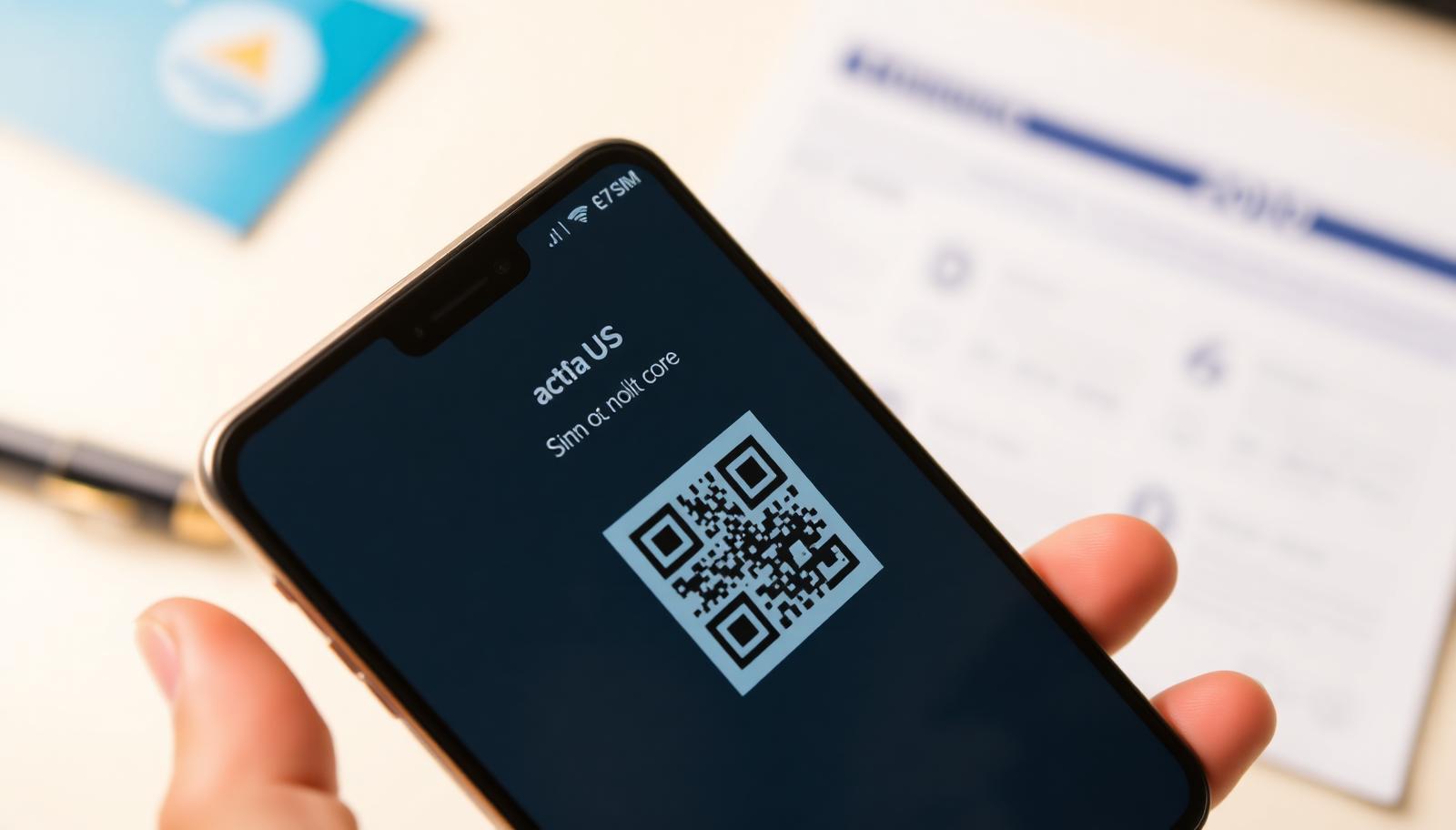
The QR code is scanned through your phone's settings, not through a camera app. On iPhone go to Settings > Cellular > Add eSIM > Use QR Code, and on Android usually Settings > Network & Internet > SIM or eSIM > Add.
After scanning, your phone downloads the line profile within seconds. You need WiFi or an existing SIM's data connection at that moment, since the profile is downloaded online.
Turning the line on and configuring it
Once the eSIM profile is installed, you need to turn that line on in settings and, most importantly, turn on data roaming for that specific eSIM line. Without roaming turned on, the eSIM won't work even in the destination it was bought for.
We recommend keeping your main physical SIM active only for calls and SMS, while setting the eSIM line as primary for data.
- Turn the eSIM line on in Settings
- Enable Data Roaming for that line
- Set the eSIM as the primary line for data
- Keep your physical SIM active for calls if you want to keep your home number
When to activate the eSIM
It's best to scan and install the QR code before travelling while you have stable WiFi, but only turn the line on once you land at your destination. Many plans start counting validity from the first network connection, so there's no need to rush turning it on at home.
Checking that your internet works
After turning it on, check the status bar on your phone — a network indicator and signal bars should appear. Open any app that uses the internet and wait for a page to load. If there's still no connection after a minute or two, double-check that roaming is enabled specifically for the eSIM line.
Frequently asked questions
How long does eSIM activation take?
Scanning and installing the QR code itself takes under two minutes with a stable WiFi connection.
Can I activate the eSIM before my trip?
Yes, you can scan and install the QR code in advance, but it's best to turn the line on only once you arrive.
What if the QR code doesn't work?
Check whether you've already scanned it once (a QR code can only be used a single time) and contact support via WhatsApp at +387 62 862 577.
Do I need WiFi to activate it?
Yes, downloading the eSIM profile requires an internet connection, either WiFi or an existing mobile network.