eSIM on Android phone (Samsung, Xiaomi, Pixel): step by step
Even though Android phones come from different manufacturers, the eSIM installation process is largely similar – the differences are mostly in menu names and settings layout.
In this guide we walk through the general procedure, as well as specifics for Samsung, Xiaomi and Pixel.
General installation steps
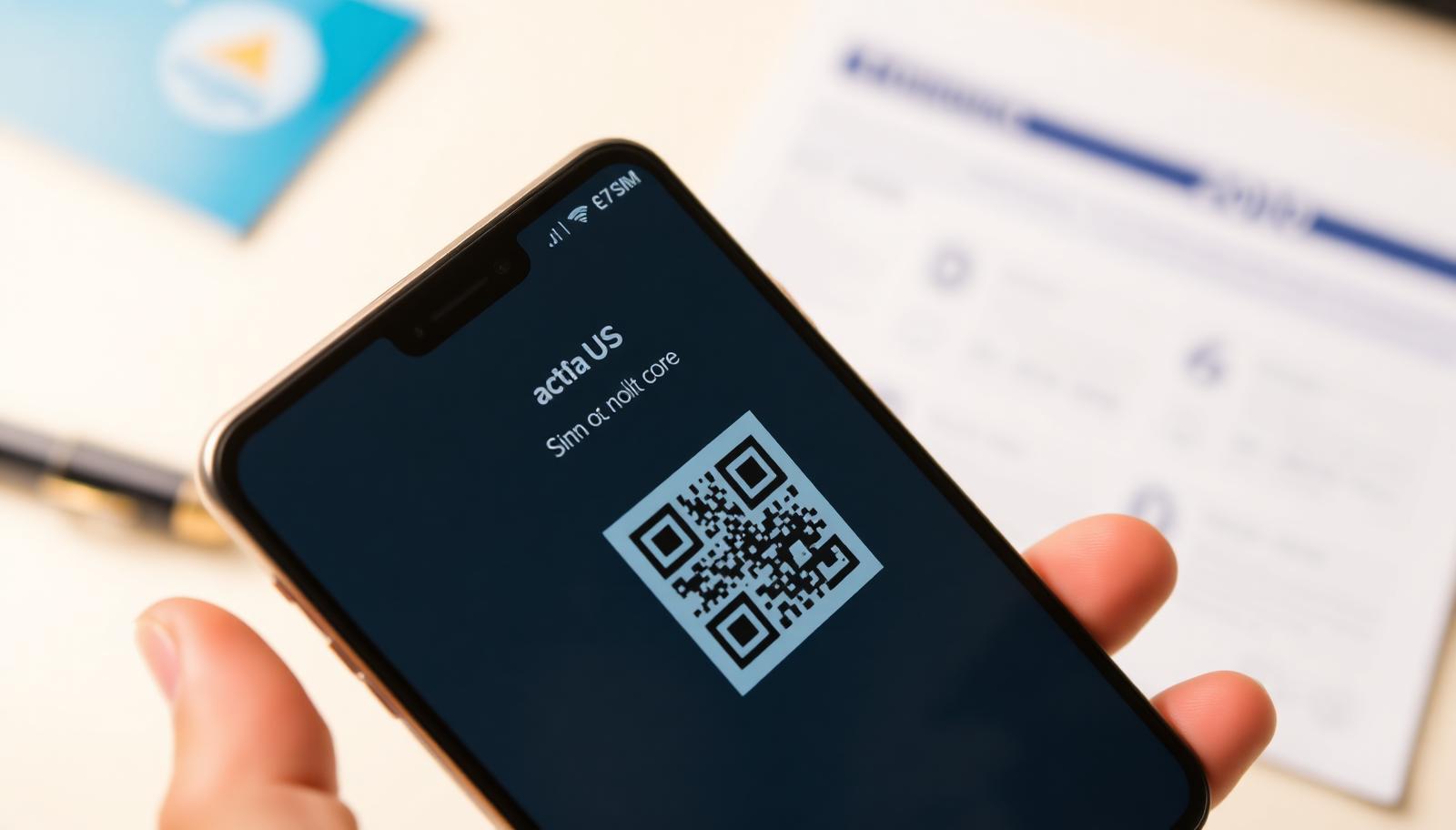
Regardless of brand, the basic process is similar: open network settings, find the option to add an eSIM profile, and scan the QR code you received after purchasing a plan.
- Open Settings > Network & internet (or SIM cards)
- Choose 'Add eSIM' or 'Add mobile plan'
- Scan the QR code or enter the details manually
- Wait for the profile activation confirmation
Samsung Galaxy devices
On Samsung phones, go to Settings > Connections > SIM manager, where you'll find the option to add an eSIM. After installation, the same menu lets you choose which line handles mobile data.
Xiaomi phones
On Xiaomi devices (MIUI/HyperOS), the path is Settings > SIM cards & mobile networks > Add eSIM. The option is sometimes tucked under additional settings, so if you don't see it right away, check the submenus for extra networks.
Google Pixel phones
On Pixel phones the process is very straightforward – Settings > Network & internet > SIMs > Add using QR code. Pixel phones are known for very stable eSIM support since Google develops Android itself.
Setting up data after installation
Once the eSIM profile is installed, make sure mobile internet is routed to the new eSIM line, and that Data Roaming is turned on for it if you're travelling outside the country of purchase.
Fixing common issues
If the QR code won't scan, check that you haven't already scanned that same code before (each QR code can only be used once) and that you have a stable internet connection during installation.
Frequently asked questions
Do the menus differ between Android versions?
Yes, menu names differ by manufacturer and software version, but the basic logic is always the same – look for 'SIM cards' or 'Networks'.
Can I scan the same QR code on another phone?
No, a QR code can only be used once. If you switch phones, you'll need a new eSIM profile.
Why doesn't the eSIM option appear on my phone?
Your model or that specific variant likely doesn't support eSIM. Check *#06# to see if an EID number appears.
What if I run into problems during installation?
Our support is available via WhatsApp at +387 62 862 577 daily until 22:00, plus 24/7 AI chat.